
Add Event Guide
Step-by-step instructions for adding timestamped events in the annotation system.
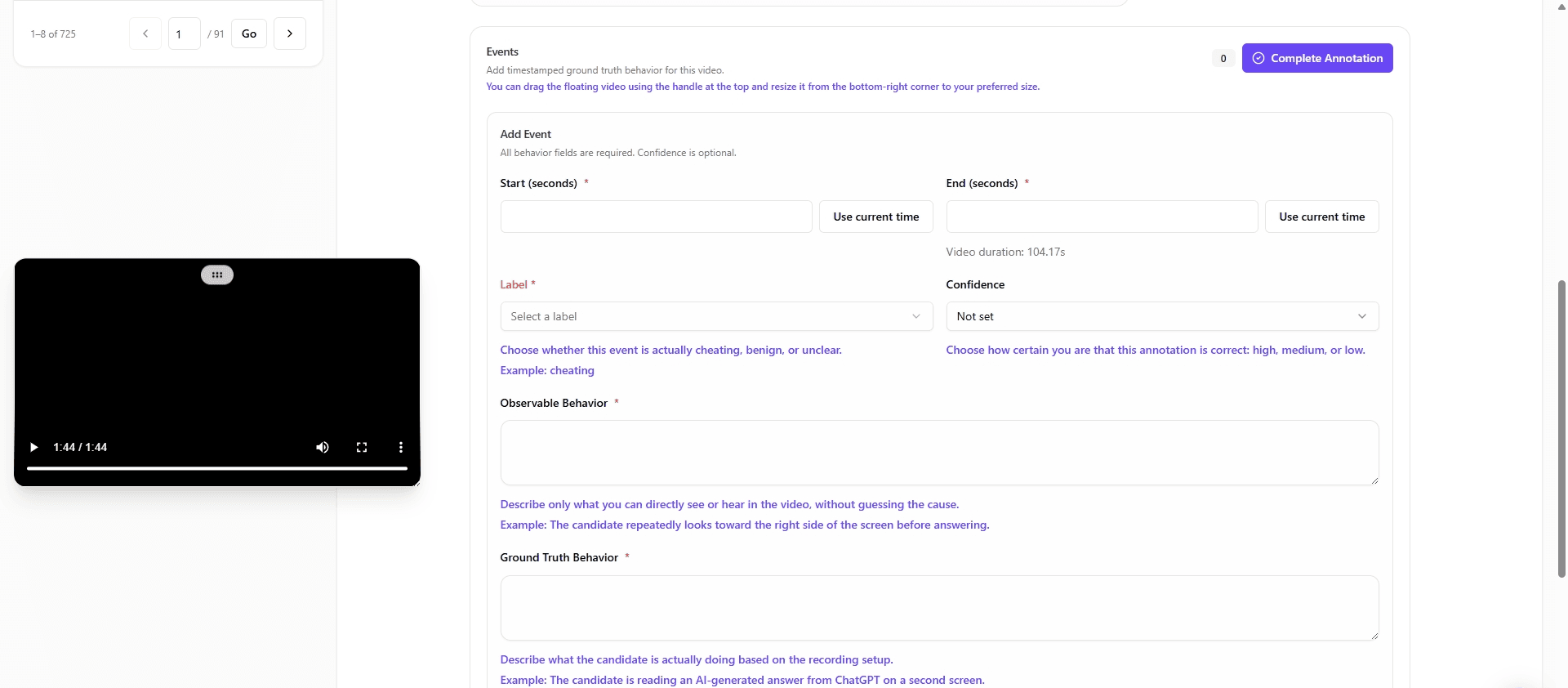
Use the Events section to add timestamped events while reviewing a video.
1. Open the Events section
Scroll to Events and locate the Add Event form. The number beside Complete Annotation shows how many events have been added to the video.
The form contains:
- Start and end time controls
- Label and confidence dropdowns
- Event description fields
- The Add Event button
2. Position the video player
The video player floats above the page so you can watch the recording while completing the form.
- Drag the handle at the top of the player to move it.
- Drag the bottom-right corner to resize it.
- Place it where it does not cover the fields you are completing.
3. Set the start time
Play the video and pause when the event begins. Then select Use current time beside Start (seconds). The current playback position is entered as the start time.
You can also type the start time directly into the field.
4. Set the end time
Resume the video and pause when the event ends. Select Use current time beside End (seconds), or enter the end time manually.
Use the displayed Video duration as a reference. The start time must be earlier than the end time, and both values must fall within the video duration.
5. Select the event options
Open the Label dropdown and select Cheating, Benign, or Unclear.
If needed, open the Confidence dropdown and select a confidence level. Confidence is optional and can remain Not set.
6. Enter the event details
Complete the three required text fields:
- Observable Behavior
- Ground Truth Behavior
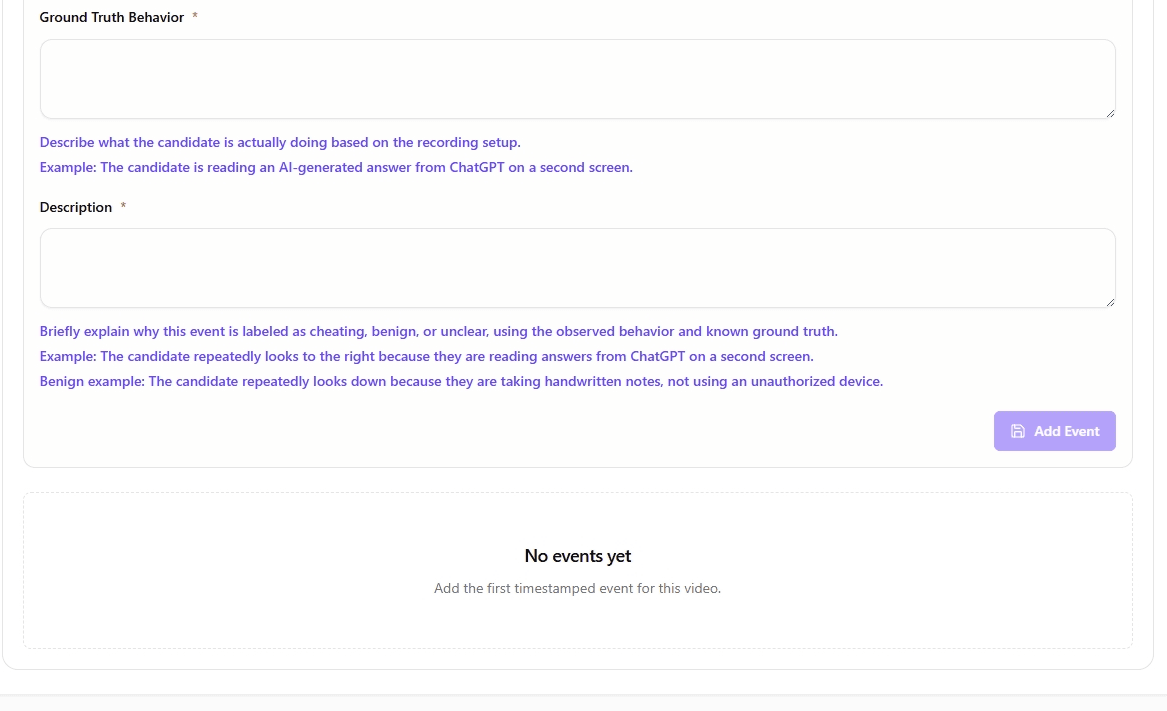
- Description
For guidance on what to write in each field, see the Video Annotation Guide.
7. Add the event
After completing the required fields, select Add Event in the bottom-right corner of the form.
The new event appears in the event list below the form, and the event count at the top of the section updates.
Repeat the same process for each relevant segment:
- Set the start time.
- Set the end time.
- Select the event options.
- Complete the required text fields.
- Select Add Event.
8. Complete the annotation
Review the event count and make sure all relevant events have been added. Then select Complete Annotation at the top-right of the Events section.
Select Complete Annotation only after the event-entry work for the video is finished.